
Calendar
The Calendar in PASS Harmonics gives you a visual schedule of inspections, visits, work orders, and key document deadlines — helping your team stay organized, proactive, and compliant.
If you're managing one site or dozens, the Calendar provides a clear, visual overview of what’s scheduled and what needs attention.
What You Can See
The Calendar displays:
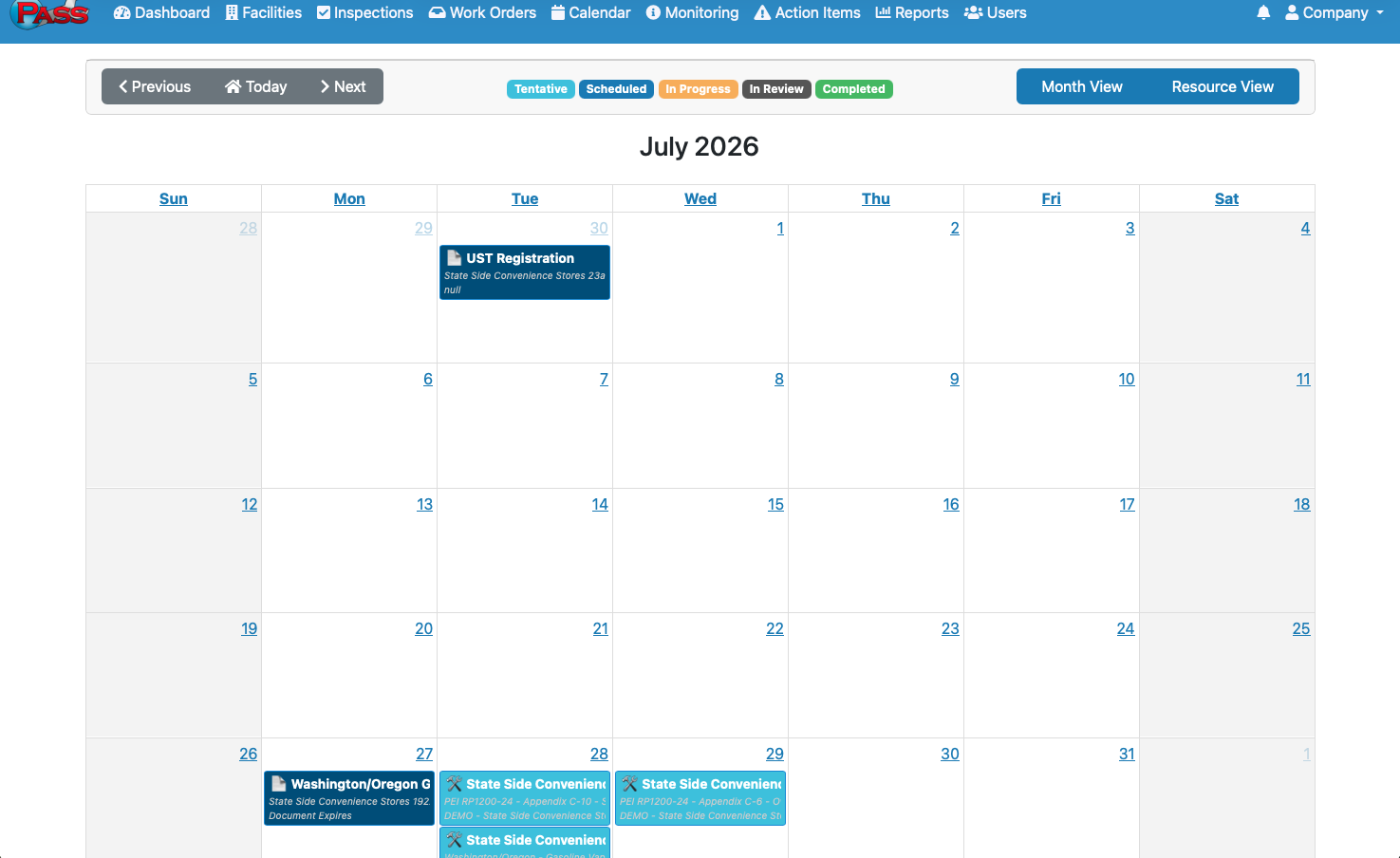
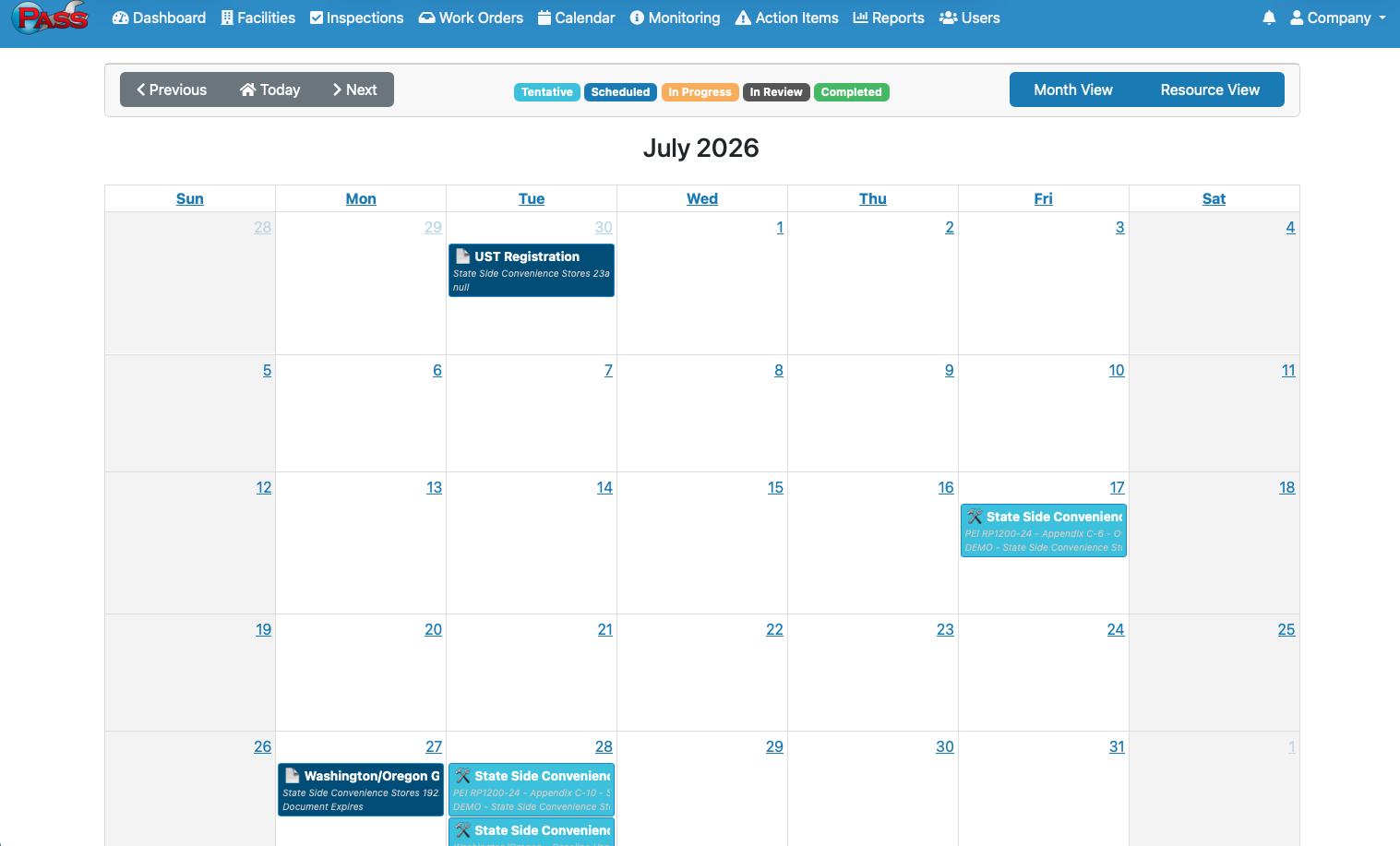
- Inspections (wrench icon)
- Visits / Work Orders (clipboard icon)
- Paperwork expiration dates on the company calendar (document icon)
Note: Visits only appear when they are tied to a work order.
Status Colors (Inspections)
The Calendar uses color coding so you can quickly see the status of inspections at a glance:
- Light Blue – Tentative
- Dark Blue – Scheduled
- Yellow – In Progress
- Black / Charcoal – In Review
- Green – Completed
- Red – Overdue
The Red (Overdue) status is especially important, as it highlights items that require immediate attention.
It is important to know that some of these tasks may belong to your service provider, and cannot be edited.
Calendar Views
Month View:
Best for planning upcoming workload and deadlines at a glance.
Month View gives you a big-picture look at everything scheduled across the month and allows you to view and edit eligible events directly from the calendar.
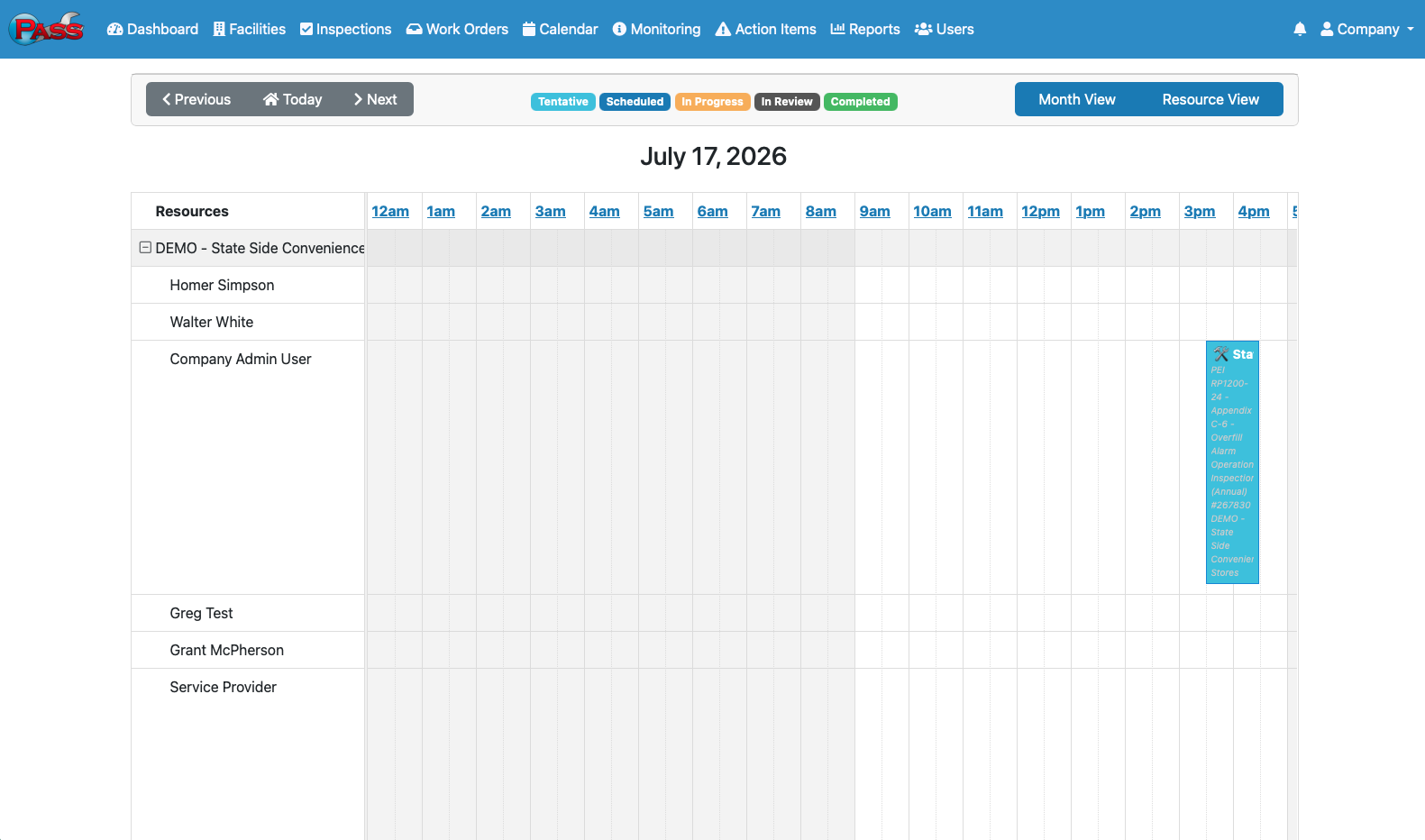
Resource View lets you see each team member’s schedule side by side so you can quickly understand who is booked, who is available, and where adjustments may be needed. This view makes it easier to balance workloads and assign inspections efficiently. You can also drag and drop events from one individual to another to make editing easier.
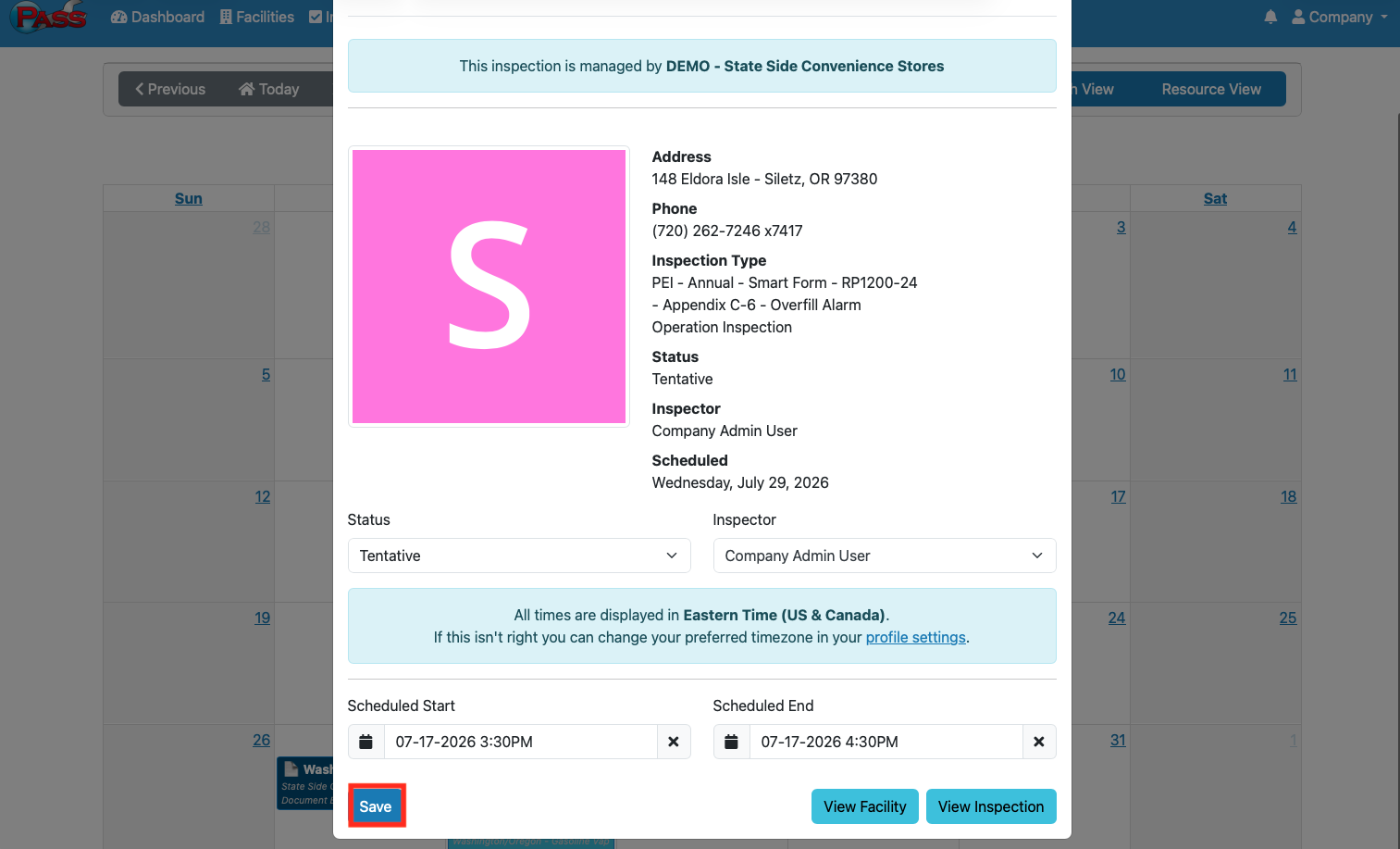
Open Event Details
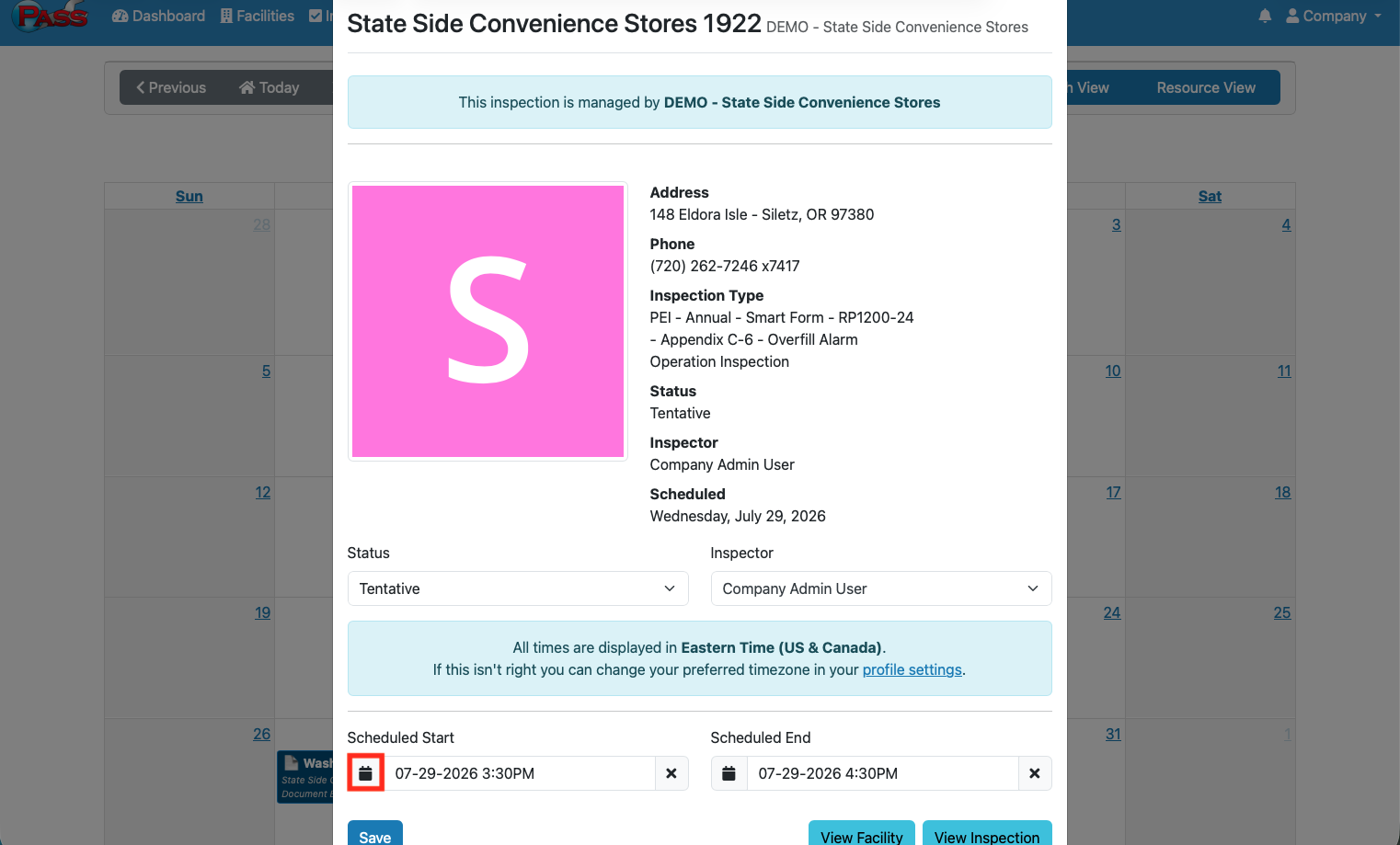
Click any inspection or visit directly on the calendar to open its detail panel. From here, you can review:
- Site / facility details
- Assigned person
- Scheduled timing
- Related work orders or inspections (for visits)
This allows you to review important information without leaving the calendar view.
Editing and Rescheduling
Need to adjust a deadline? You can reschedule items directly from the calendar.
If your account permissions allow it, you can:
- Update inspection details (status, assignee, scheduled dates and times)
- Update visit assignee and visit start/end times
- Drag and drop or resize eligible events directly on the calendar to reschedule
To Reschedule an Event:
Step 1.
Click on the Event that needs to be rescheduled or changed.
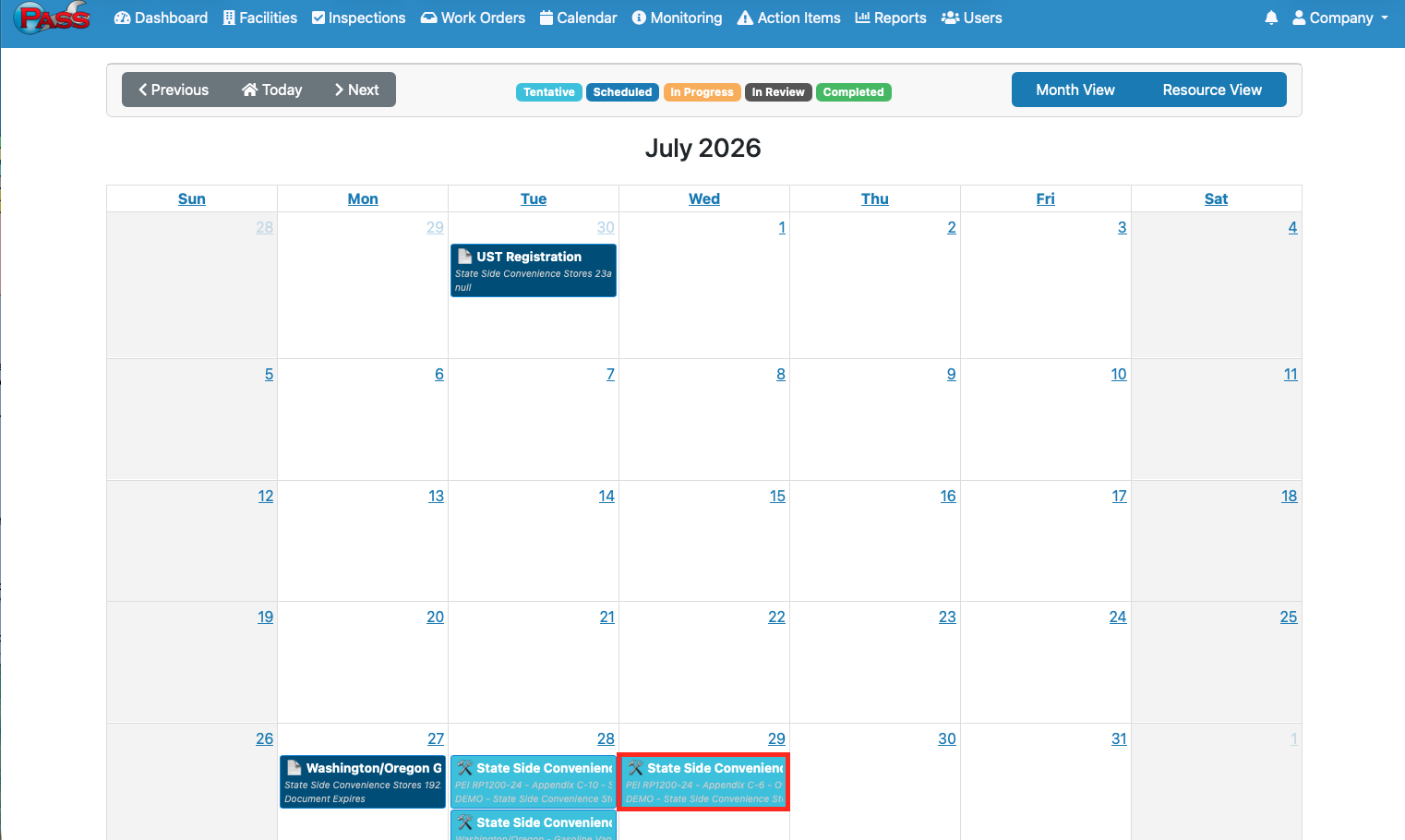
Step 2.
Under Scheduled Start, click the calendar icon to adjust the start date and update the time if needed
Step 3.
Click Save to keep the changes.
Timezone
All calendar times are displayed based on the timezone set in your user profile.
If times appear incorrect, update your timezone in Profile Settings to ensure accurate scheduling.
If you have any questions, please contact PASS Testing Support at support@passtesting.com or our Support line at (765)281-5588 Monday through Friday, 8:30 a.m. to 4:30 p.m. EST.